User manual
User manual
InTO Translation translates the text of an open Adobe InDesign document with DeepL — right inside the layout. This manual takes you from creating an account to a finished translated document.
About this service
InTO Translation translates the text of an open Adobe InDesign document with DeepL — right inside the layout. Text frames, threaded stories, tables and cells are translated where they sit; paragraph and character styles, font cuts and the structure of the document are kept.
The service has two parts:
| Part | What it is for |
|---|---|
| InDesign plugin (the “InTO Translation” panel) | Where translating happens. Only here. |
| Web account (this website) | Registration, plan, wallet, payments, translation history, account settings |
Both use the same account. You sign up once on the website and sign in with the same credentials in the InDesign panel.
Important: the website deliberately has no translation page. Translating happens from InDesign only, because that is the only place where the layout we are preserving actually exists.
What you need
- Adobe InDesign, version 18 or newer (desktop), with Adobe Creative Cloud
- an internet connection (the plugin talks to our server, the server to DeepL)
- a free account with InTO Translation
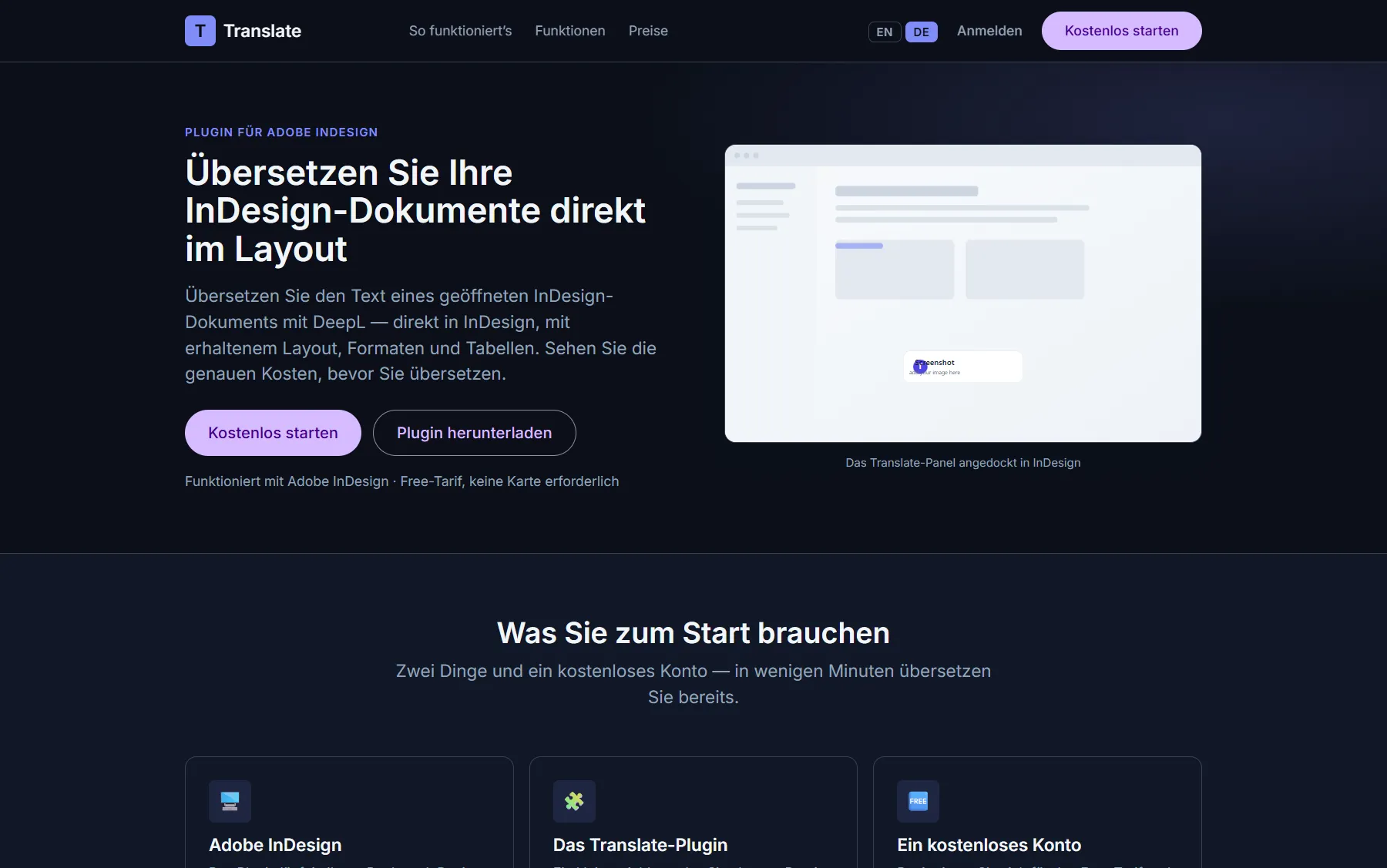
The public home page, with the download and the pricing overview.
Quick start in five steps
- Create an account on the website and open the confirmation email (without that click there is no way to sign in).
- Download the plugin — the How it works page → Download the InDesign plugin (.ccx) — and double-click the file to install it.
- In InDesign, open the panel: Window ▸ Utilities ▸ InTO Translation, and sign in there with the same account.
- Open a document, choose the source and target language, and click Translate document. The panel scans the document and shows the cost before anything is charged.
- Confirm with Continue translation — the document is translated.
The web account
Signing up and in, the dashboard, plans, wallet, payments, history, settings, cancellation and account deletion.
Open chapter →The InDesign plugin
Installing it, signing in, languages and write target, what a translation run looks like, and the panel settings.
Open chapter →How billing works
Quota first, wallet after — the calculation character by character, with a worked example.
Open chapter →Help & glossary
Error messages and what they mean, frequent questions, the glossary, and how to reach support.
Open chapter →Last updated: August 2026 · plugin version 1.0.7